You may have noticed that there is a lot going on over here at The Positivity Project! Over the last couple of weeks, we’ve worked with nearly 800 Partner Schools to ensure every staff member has access to our differentiated resources for every grade from K-8, plus one set for grades 9-12, alongside dozens of P2 project based learning (P2 PBL) units.
Because we have so many new Partner Schools, we want to help you understand the best way to access the hundreds of slide presentations that are available to you. Bottom Line: As a P2 Partner School educator when you are signed into your account, you will find every slide weekly slide presentation and every character card available to Partner Schools through our Resource Database — and all of our P2 PBL units through our PBL Library.
Below are two distinct step-by-step processes to ensure that you can access our resources. One process is for schools who use Google Apps for Education (e.g. Google Docs, Slides, Classroom) and one process is for schools who do not use Google Apps for Education. The only difference is in Step 2. Everything else remains the same. (Note: If you are a Partner School teacher and you’re unsure whether or not your school is a Google Apps school, please check with your school’s P2 Leader or principal.)
Accessing Resources as a Google Apps for Education School
Below is a video demonstration followed by a step-by-step process with pictures.
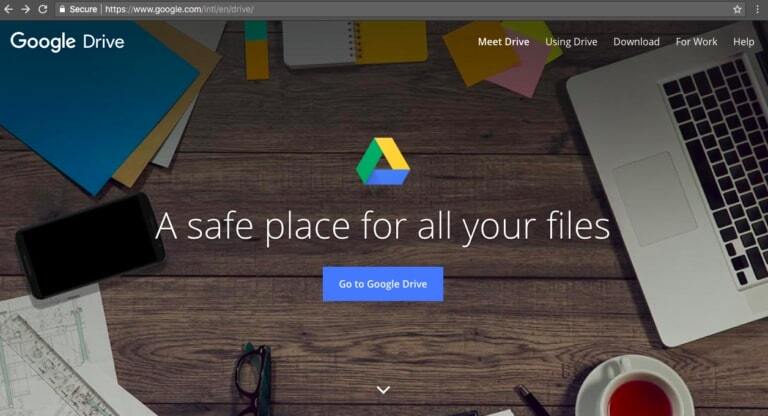
Step 1: Navigate to Google Drive (www.drive.google.com) account in a web browser (Chrome, Firefox, Safari, etc) and click the blue “Go to Google Drive” button
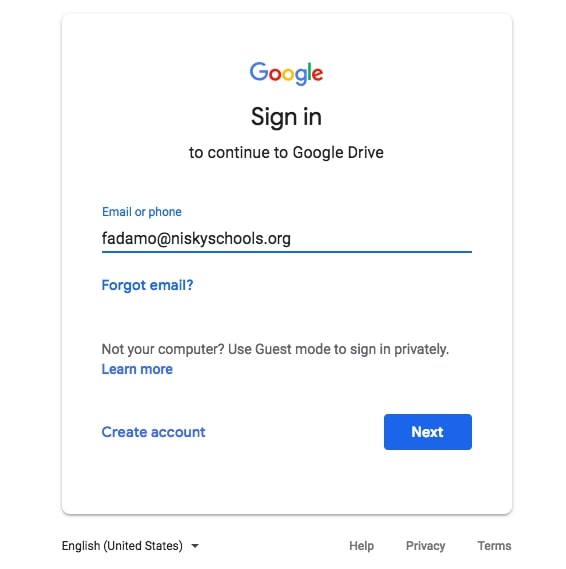
Step 2: Log in to your school’s Google Drive account
Step 3: Within that same web browser, navigate to https://posproject.org/resources/
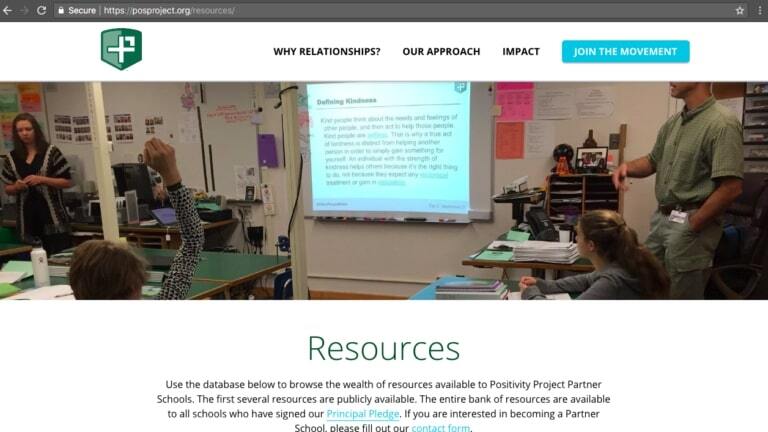
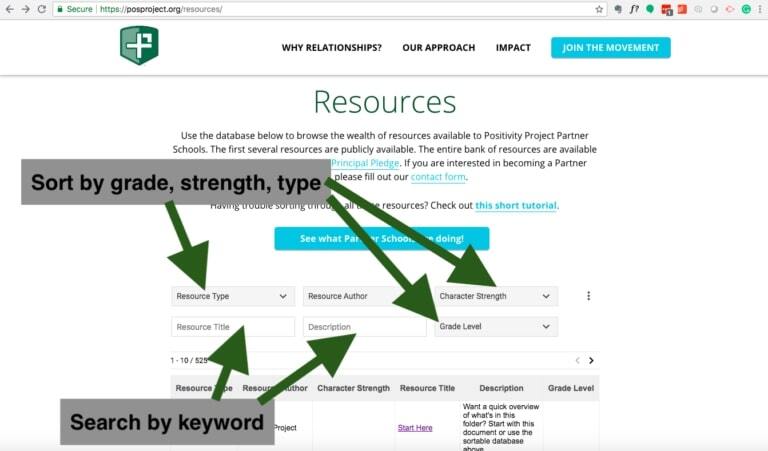
Step 4: Search (by keyword) and sort (by character strength, grade level, and resource type) to find the weekly slide presentation that you want to use
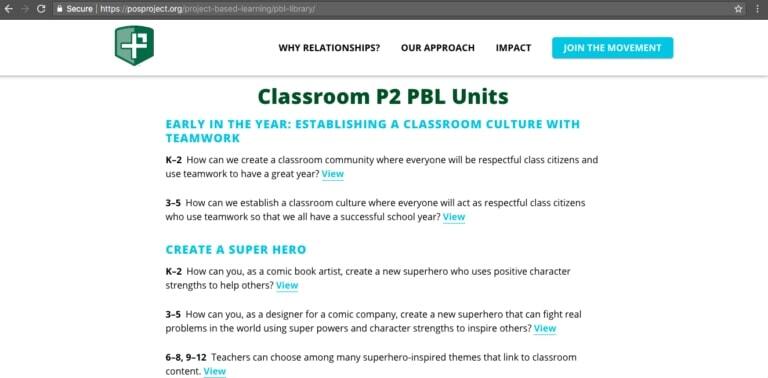
Step 5: Navigate to https://posproject.org/project-based-learning/pbl-library/ and directly access the projects by clicking on the “View” hyperlink
Accessing Resources as a Non-Google Apps for Education School
Below is a video demonstration followed by a step-by-step process with pictures.
Step 1: Navigate to Google Drive (www.drive.google.com) in a web browser (Chrome, Firefox, Safari, etc)
Step 2: Sign in using your @posproject.org account and password
Step 3: Within that same web browser, navigate to https://posproject.org/resources/
Step 4: Search (by keyword) and sort (by character strength, grade level, and resource type) to find the weekly slide presentation that you want to use
Step 5: Navigate to https://posproject.org/project-based-learning/pbl-library/ and directly access the projects by clicking on the “View” hyperlink
We’re really confident that using the Resource Database and the weekly blog posts will provide teachers with the most updated and easily accessible resources. We’re looking forward to a great school year, and we can’t wait to see how each teacher helps our students to develop positive and strong relationships.

Frank Adamo
Frank Adamo is The Positivity Project's Ed. Tech Coordinator. He is also an 8th grade English teacher in Niskayuna, NY. Frank is passionate about maximizing technology's impact in the classroom. He regularly works with parents, students, teachers and administrators on the benefits of using technology in the classroom as well as the opportunities and drawbacks of social media in the digital age.